
What you’d need:
- Domain Name
- VPS Server
I recommend you to use CloudFlare proxy your server. It will prevent DDoS attacks based on Domain Names. It is free.
Follow the tutorial on it and add your domain name to cloudflare.
After setting up cloudflare, you should also set up the A record on it.
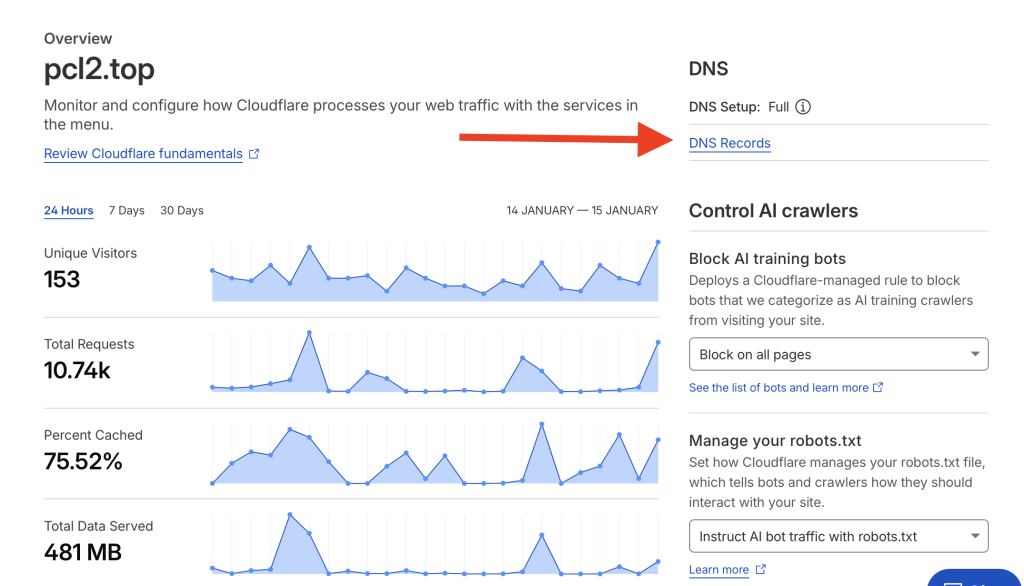
In Cloudflare Dashboard, click “DNS Record”.
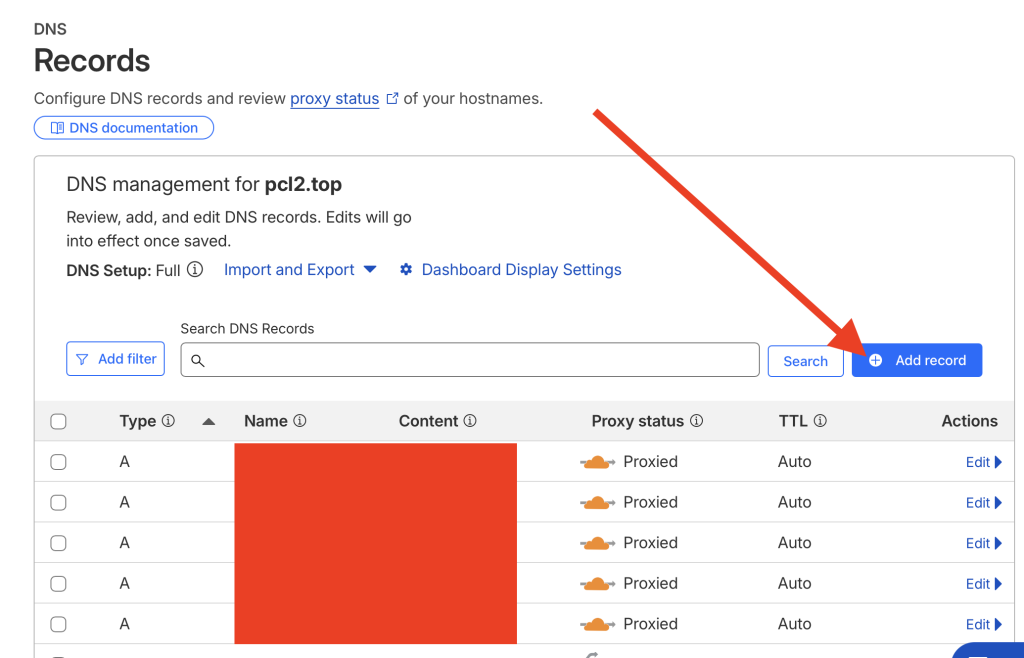
Add Record.
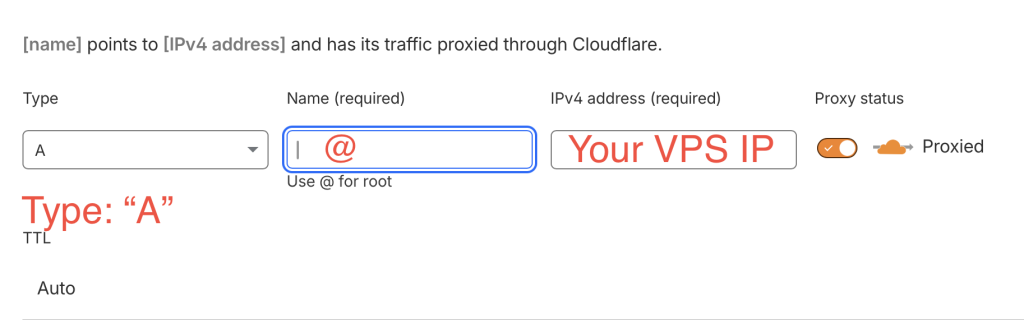
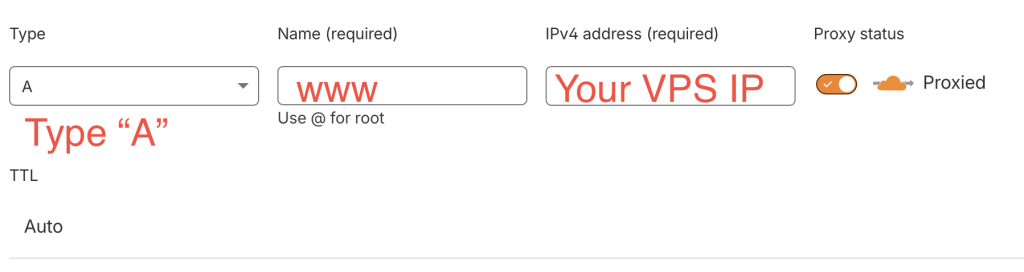
Add these two A Records. And you’re all set. Caution not to leak your VPS IP address, otherwise DDoS attackers might attack by using IP. After all, wait for 10~60 minutes for the DNS Record been added on your region’s DNS server.
Install a server panel ( I will use aapanel as an example here, but it depends on you.)
Install Script:
URL=https://www.aapanel.com/script/install_7.0_en.sh && if [ -f /usr/bin/curl ];then curl -ksSO "$URL" ;else wget --no-check-certificate -O install_7.0_en.sh "$URL";fi;bash install_7.0_en.sh forum
Install as root user
root@vultr:~# URL=https://www.aapanel.com/script/install_7.0_en.sh && if [ -f /usr/bin/curl ];then curl -ksSO "$URL" ;else wget --no-check-certificate -O install_7.0_en.sh "$URL";fi;bash install_7.0_en.sh forum

+----------------------------------------------------------------------
| aaPanel FOR CentOS/Ubuntu/Debian
+----------------------------------------------------------------------
| Copyright © 2015-2099 BT-SOFT(https://www.aapanel.com) All rights reserved.
+----------------------------------------------------------------------
| The WebPanel URL will be https://SERVER_IP:31750 when installed.
+----------------------------------------------------------------------

Do you want to install aaPanel to the /www directory now?(y/n):
If you use a normal user to execute the installation script, you will get the following prompt
aapanel@vultr:~$ URL=https://www.aapanel.com/script/install_7.0_en.sh && if [ -f /usr/bin/curl ];then curl -ksSO "$URL" ;else wget --no-check-certificate -O install_7.0_en.sh "$URL";fi;bash install_7.0_en.sh forum
Non-root install, please try the following solutions:
   1.Please switch to [root] user install
   2.Try executing the following install commands:
     sudo bash install_7.0_en.sh forum
aapanel@vultr:~$
You can use sudo -i or su command to switch to root user.
==================================================================
Congratulations! Installed successfully!
==================================================================
aaPanel Internet Address: https://your_ip_address:31750/abcdefg
aaPanel Internal Address: https://your_ip_address:31750/abcdefg
username: abcdefgh
password: abcdefgh
Warning:
If you cannot access the panel,
release the following port (31750|888|80|443|20|21) in the security group
==================================================================
Time consumed: 1 Minute!
Open your browser and visit the link shown. And login by using the credentials shown.
Then, in this page, choose LNMP environment, and click install button below.
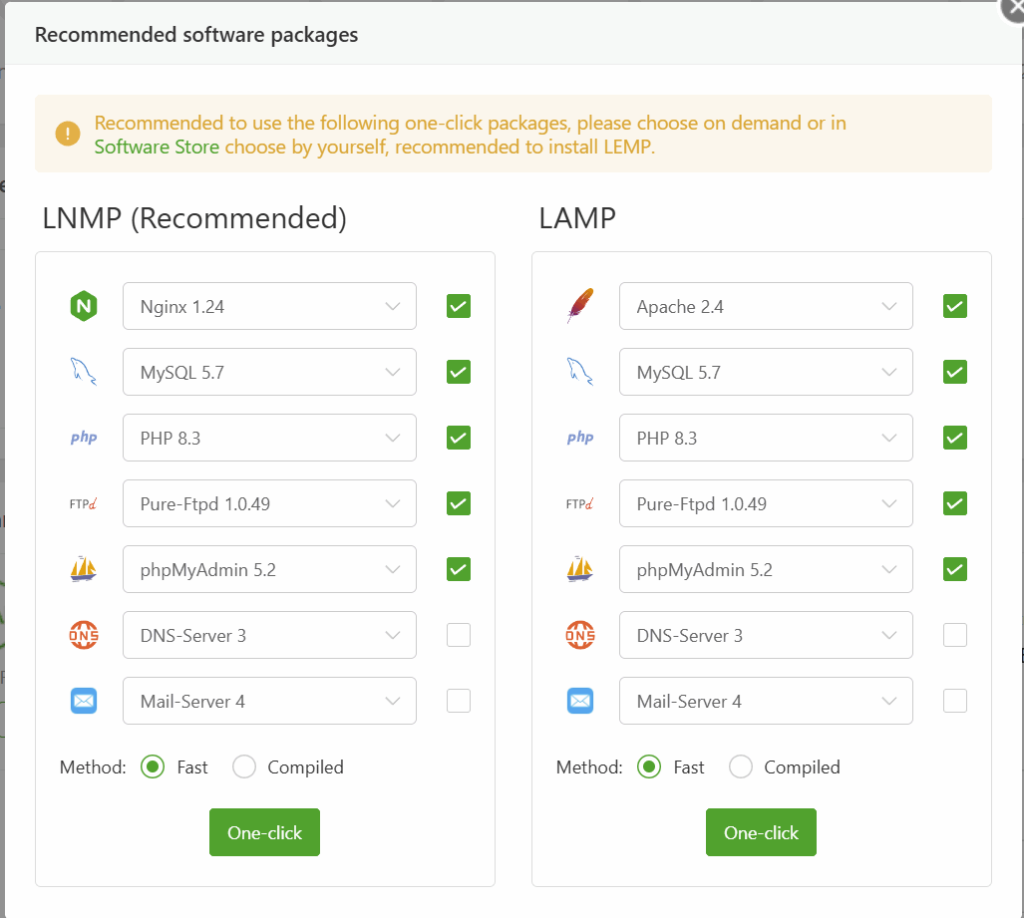
After installation, click on “Website”, and click

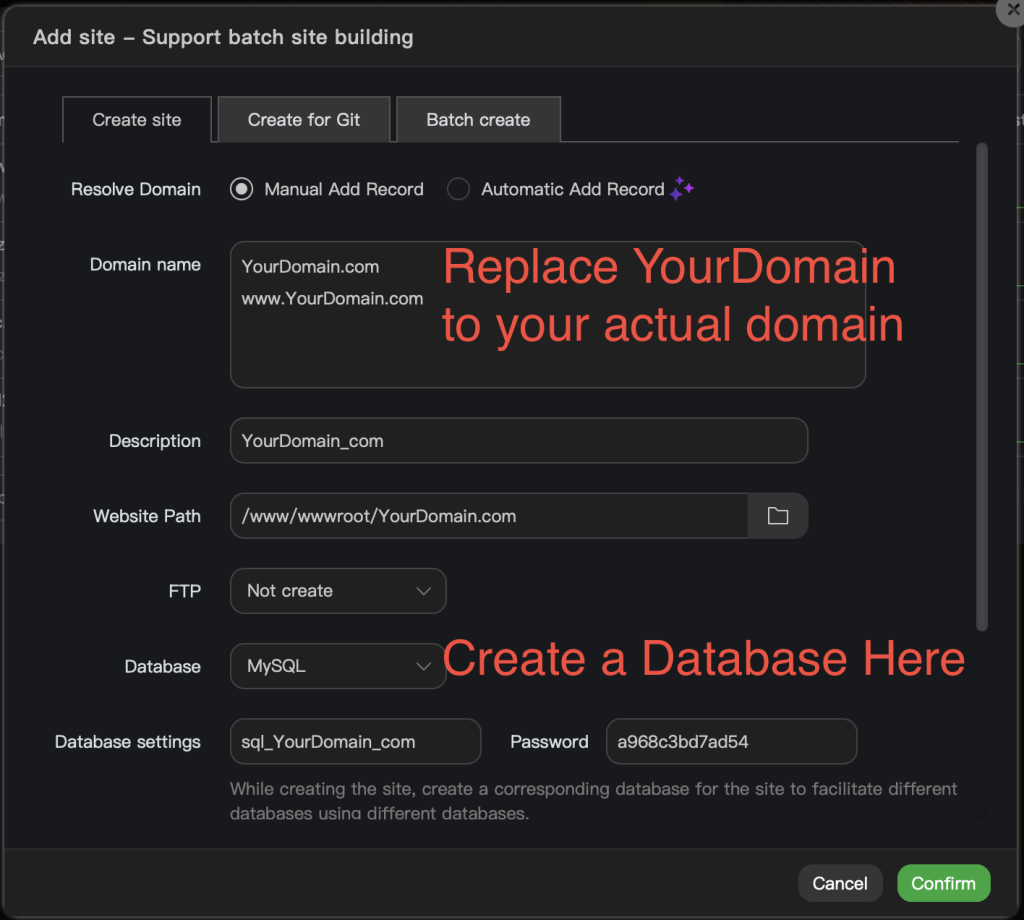
It is recommended to set up SSL Certificate. It removes the “Not Safe” label and also enchants the safety. Click on the Not Set text.

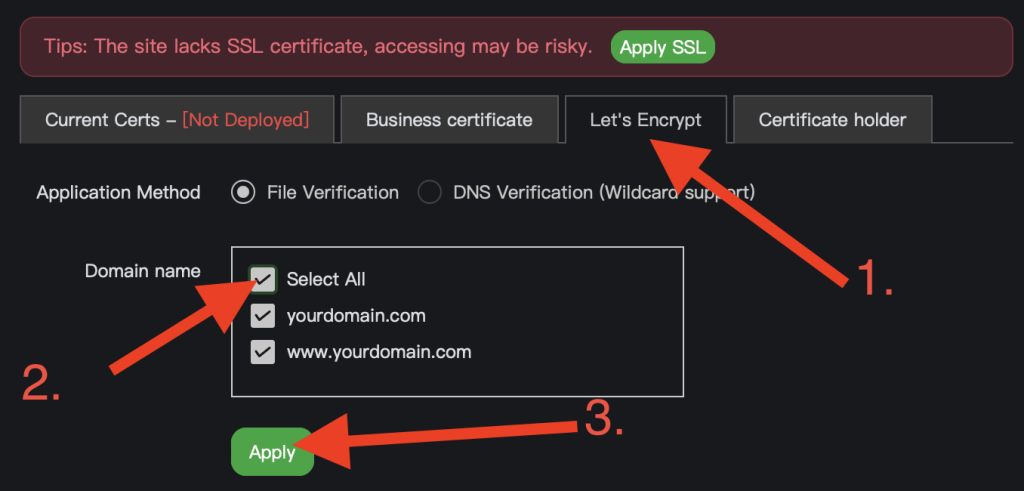
Wait a moment, then the SSL certificate will be applied successfully. It is recommended to turn on Force HTTPS.
Then, Download WordPress.
you will download a zip file.
Click on the folder icon.
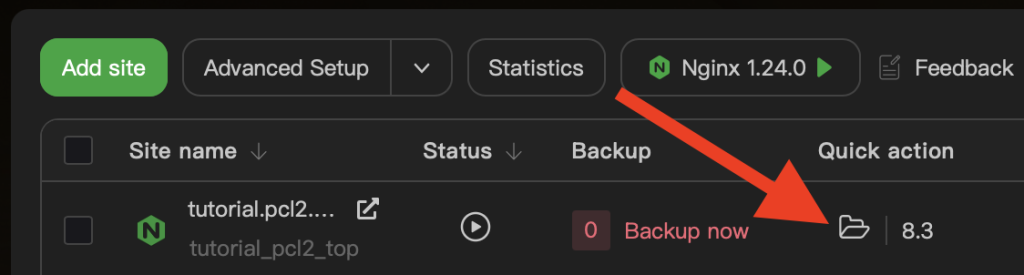
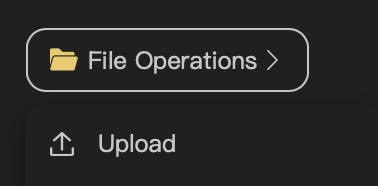
File Operations > Upload. And Upload the zip file. And Unzip it. It would generate a WordPress file. Open it, select all, Cut, back to the previous folder, and paste.
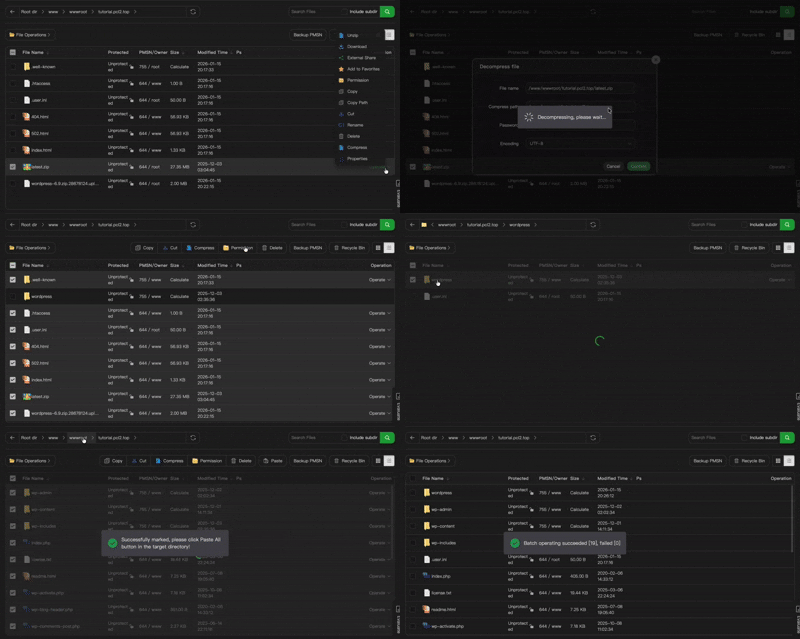
its a little bit blur but you can still get the general idea tho
Then, visit your website.
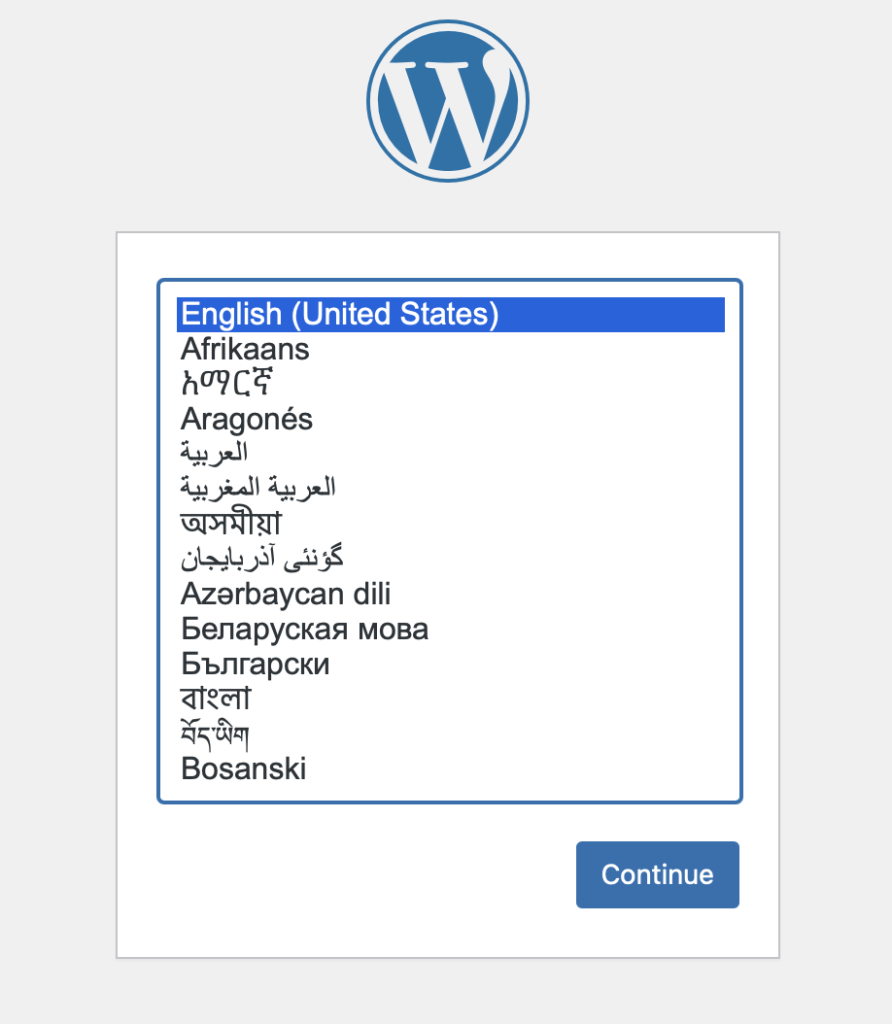
This Page will show up. Click on your language and hit continue.
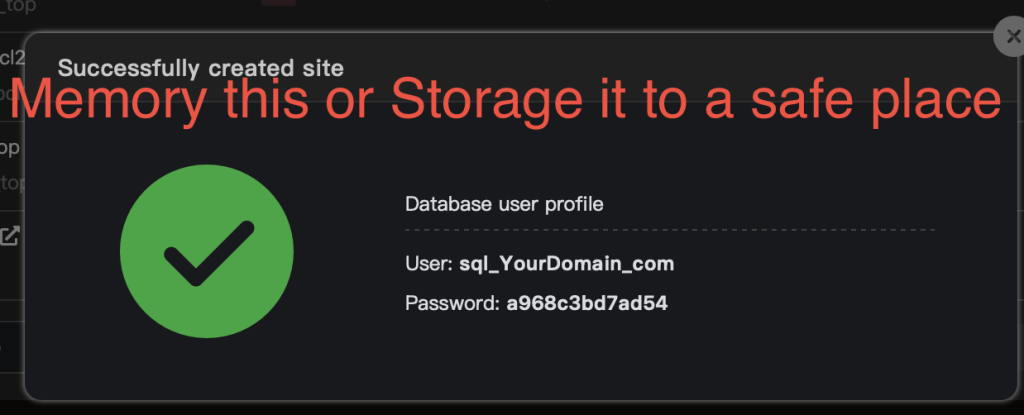
Remember the Database user profile? In this step we need it. Fill it into the gap.
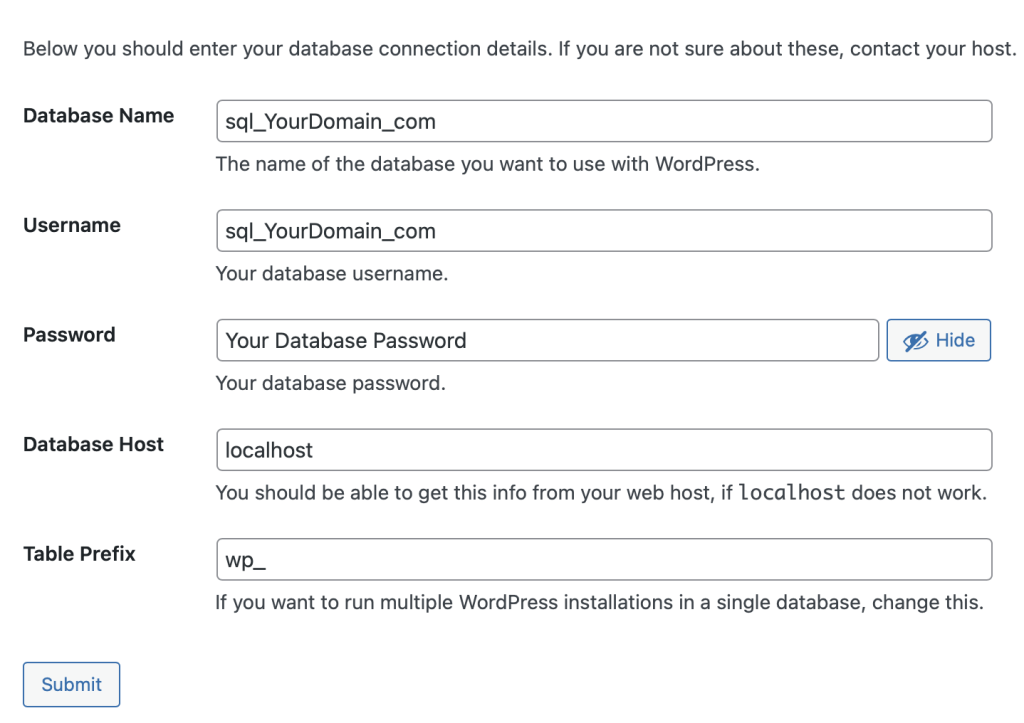
And click on Submit Button. All done, enjoy building your website!
Leave a Reply